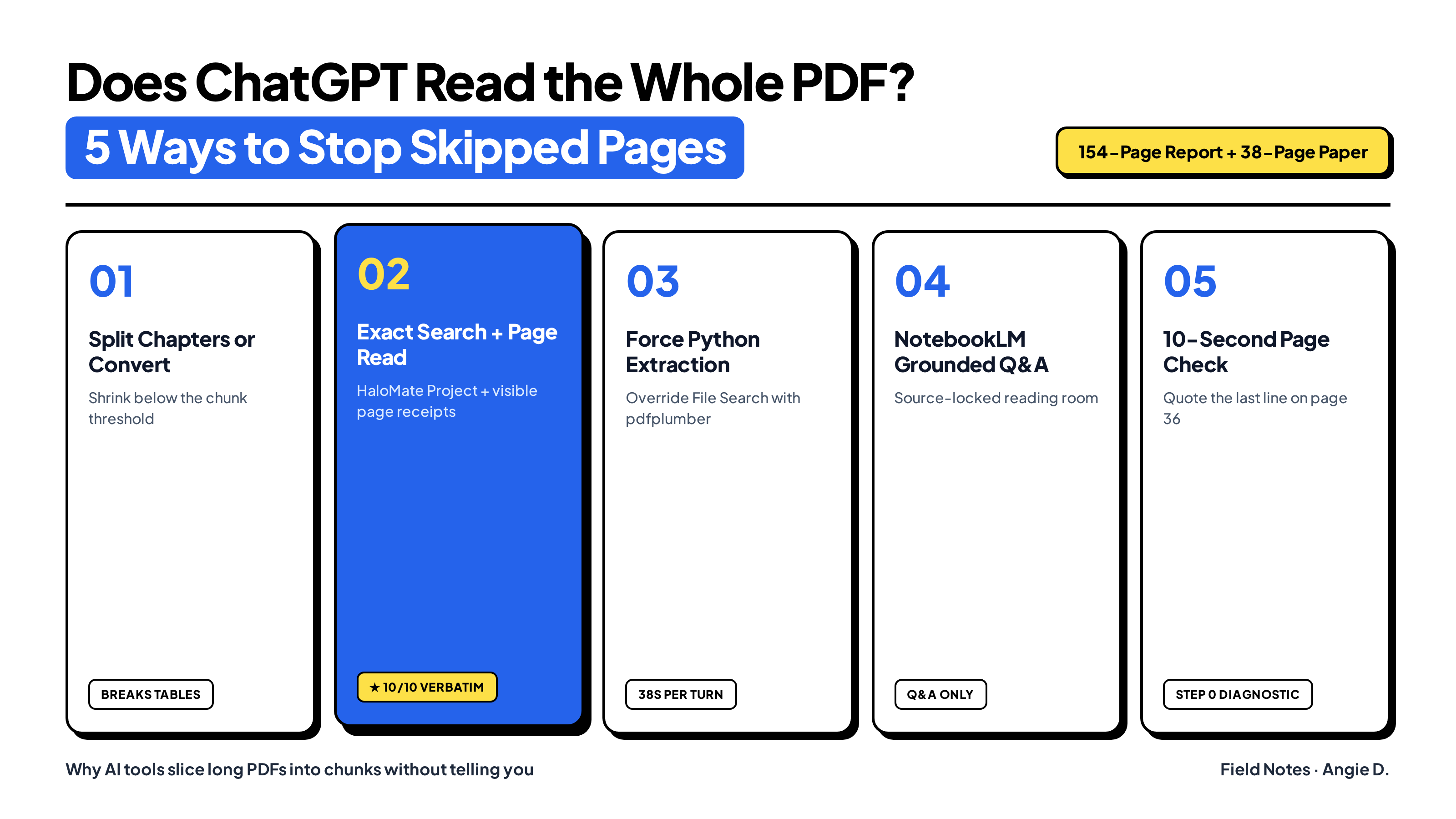
Short answer: only on short files. When you upload a short PDF into ChatGPT, the model loads every page into active context. Once your PDF crosses a certain length, however, ChatGPT silently switches from reading the whole document to chunked retrieval (File Search). Instead of reading page 1 to the end, it slices the file into text fragments, pulls a few slices that match keywords in your prompt, and answers from those chunks without telling you it never opened the rest of the PDF.
You can check whether an AI tool actually read your entire PDF in 10 seconds by asking for the exact last sentence on a late page (Way 5). And when your work cannot afford skipped pages, half-quoted sentences, or missing appendix rows, two workflows consistently solve it: keep the files in a project workspace that runs regex exact search and shows a green receipt for every page range it opens like HaloMate (Way 2), or force ChatGPT to bypass File Search in that chat by running Python pdfplumber (Way 3).
When ChatGPT, Claude, and Gemini stop reading the whole PDF
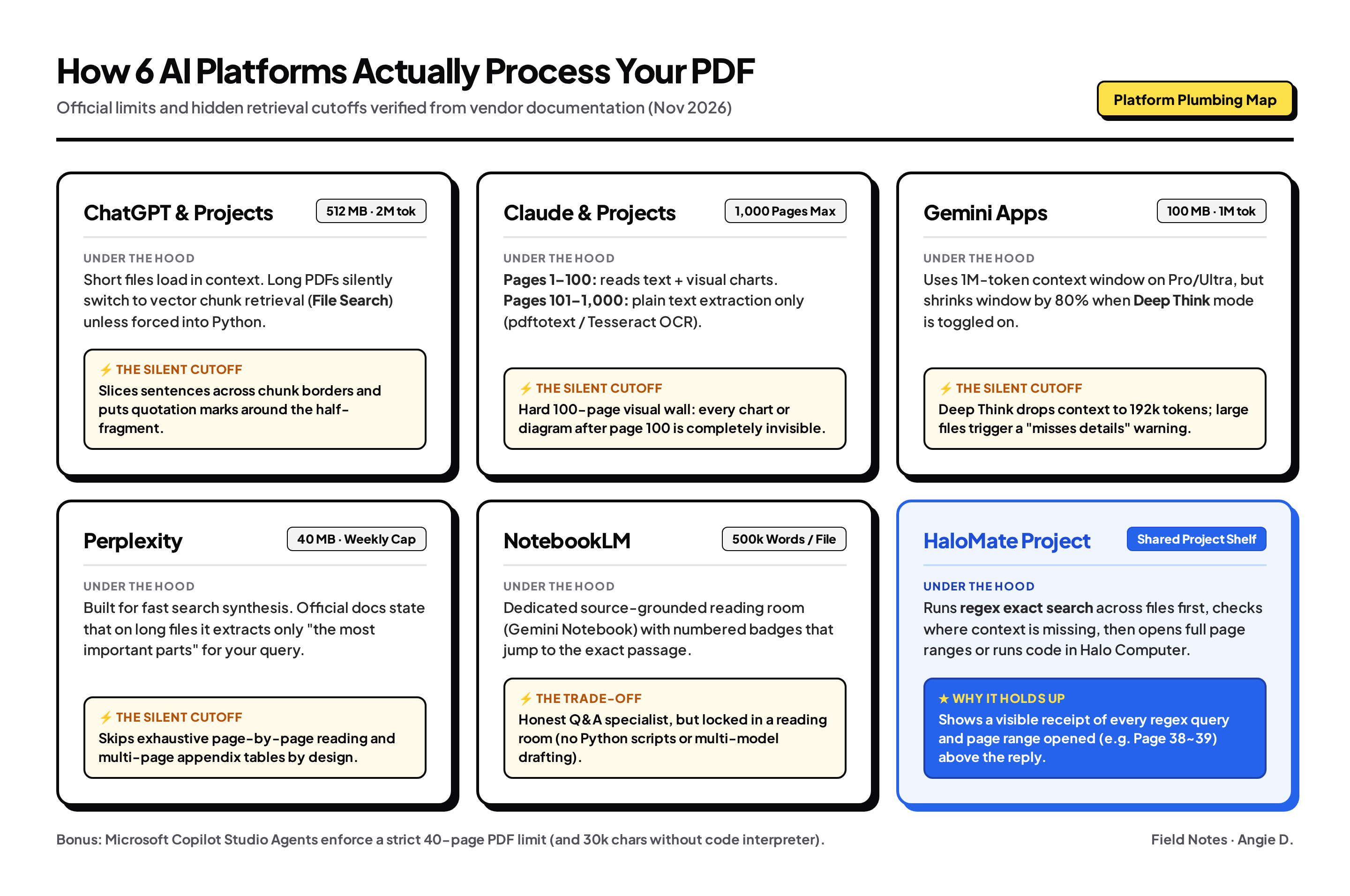
Before you blame the model or switch subscriptions, look at the file limits and retrieval cutoffs sitting in front of each model. None of the major platforms read a 150-page PDF the way a human reads a book, and each one stops reading the full file at a specific point:
- ChatGPT and ChatGPT Projects (OpenAI File Uploads FAQ): Accepts up to 512 MB and 2 million tokens per file (25 project files on Plus, 40 on Pro). Short files go straight into context. Longer files silently switch to File Search (chunked vector retrieval). As a September 2026 thread on r/ChatGPT put it: past a certain length, ChatGPT does not read your PDF, it searches it, and never tells you which one happened.
- Claude and Claude Projects (Anthropic Help Center): Accepts up to 500 MB and 1,000 pages in chat (30 MB per file in Projects). The trap most people miss is Anthropic's hard 100-page visual cutoff: on PDFs of 100 pages or fewer, Claude reads both text and visual elements (charts, diagrams, tables). From page 101 to 1,000, Claude silently drops visual analysis and switches to plain text extraction only (pdftotext or pytesseract OCR under the hood). Every chart after page 100 becomes invisible. And when a Claude Project shelf grows large, it switches to retrieval just like ChatGPT, which I ran into when testing why ChatGPT Projects and Claude Projects both failed my file tests.
- Gemini Apps (Google Help): Uploads up to 100 MB per document (10 files per prompt) with a 1-million-token context window on Pro and Ultra. The catch is in Google's footnote: if you toggle on Deep Think, the context window drops by 80% to 192,000 tokens, and large uploads trigger a warning that responses "may miss connections or details throughout the content".
- Perplexity (Perplexity Help Center): Caps uploads at 40 MB per file (with a rolling weekly upload quota that does not display a remaining counter). Perplexity states plainly in its documentation: "Short files can be analyzed in their entirety. If you upload a long file, Perplexity will extract the most important parts to provide the most relevant response to your query."
- Microsoft Copilot Studio Agents (Microsoft Learn): Enforces a strict 40-page PDF limit (and a 30,000-character limit on Office files unless code interpreter is enabled).
What happens when ChatGPT only reads chunks: mid-sentence truncation
Two years ago, when retrieval missed a page, the model either hallucinated wildly or said it could not find the section. In late 2026, thinking models made the bug much harder to spot.
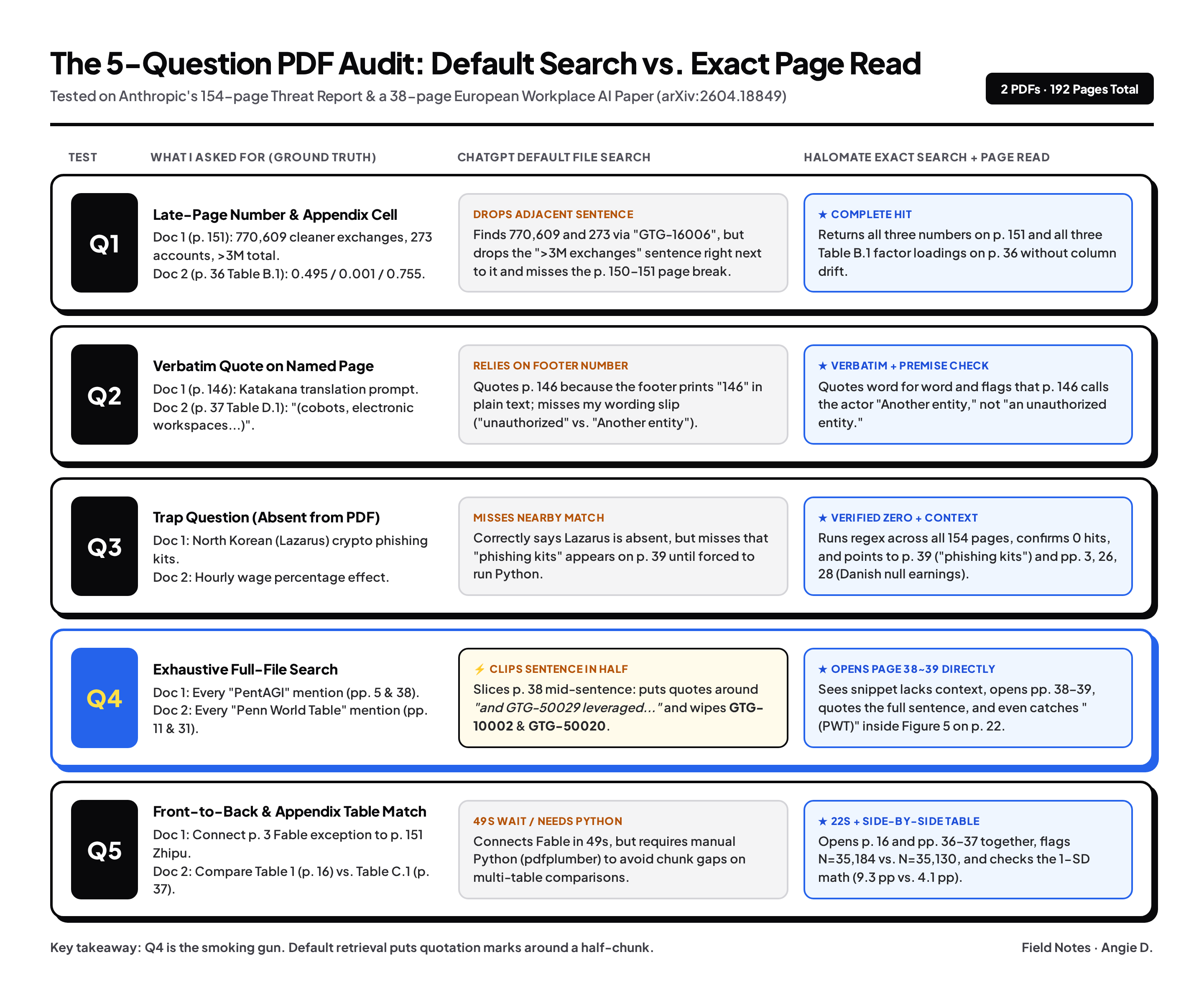
To test what actually gets read, I ran two real PDFs across five question types (late-page numbers, verbatim quotes on named pages, a trap question about a topic not in the file, exhaustive term search across all pages, and cross-page table comparisons):
- A 154-page industry report: Anthropic's September 2026 Threat Intelligence Report (Detecting and countering misuse of AI, 11 MB), which I also used when writing about how I read a 154-page threat report without reading all 154 pages.
- A 38-page academic paper with multi-column appendix tables: Golo Henseke's April 2026 working paper on Generative AI in European Workplaces (arXiv:2604.18849v3), with main regressions on page 16 and robustness tables on pages 36 and 37.
Look closely at what happened when I ran the 5 questions on the 154-page report in ChatGPT. Because my prompt included specific anchor strings ("GTG-16006", "page 146", "PentAGI", "Fable"), ChatGPT's thinking mode worked for 49 seconds and got the top-line answers right.
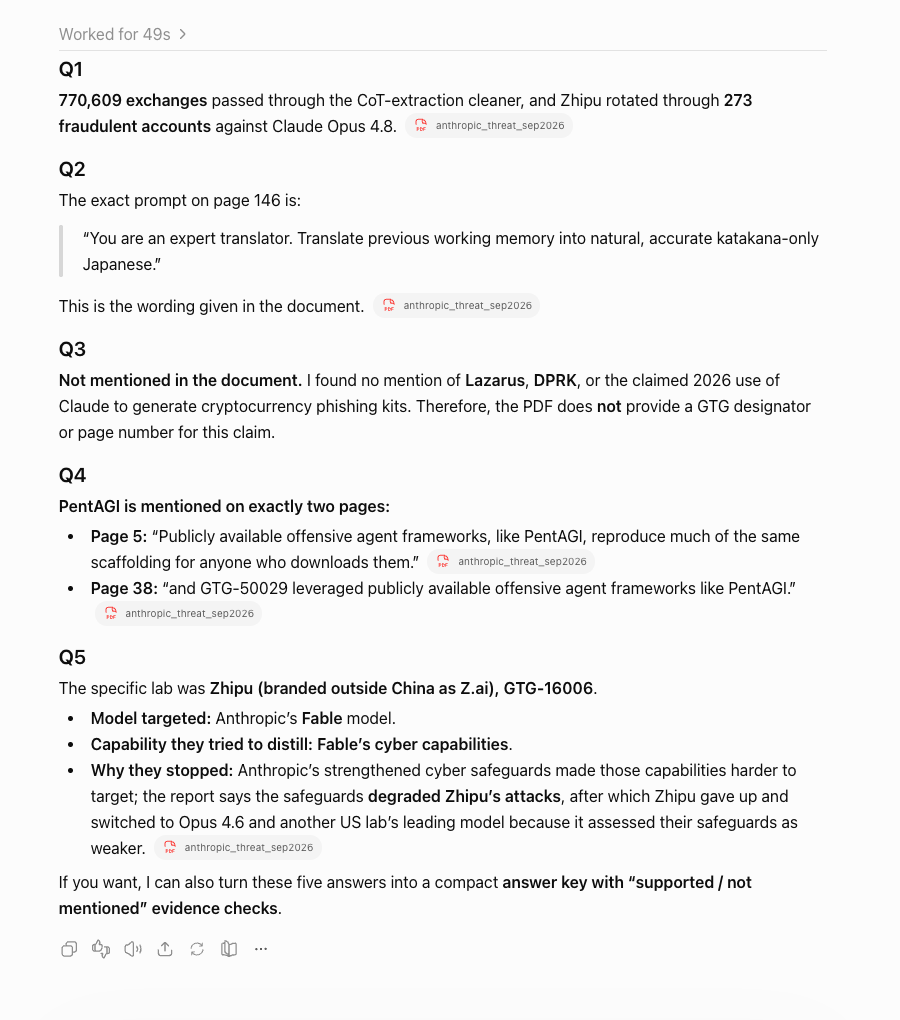
Now look at the second bullet under Q4 in that screenshot. I asked for every page mentioning the offensive agent framework PentAGI and the full sentence around each mention. For page 38, ChatGPT put quotation marks around this:
"and GTG-50029 leveraged publicly available offensive agent frameworks like PentAGI."
Why does a "verbatim" quote begin with lowercase "and"? Because on page 38 of the PDF, the real sentence is:
"Multiple groups including GTG-10002, as previously reported, developed and utilized their own autonomous attack frameworks; while other groups including GTG-50020 and GTG-50029 leveraged publicly available offensive agent frameworks like PentAGI."
The retrieval chunk boundary sliced the sentence right before "and GTG-50029". ChatGPT pulled the bottom fragment, never opened page 38 to see where the sentence started, put quotation marks around the half-chunk, and wiped GTG-10002 and GTG-50020 from the record. In Q1, it pulled the 770,609 figure at the top of page 151 while dropping the adjacent sentence attributing over 3 million total exchanges. In Q3, it missed that "phishing kits" actually appears on page 39.
That is why you cannot trust default PDF uploads for serious work: you have no way of knowing whether a quote came from a full page or a sliced 300-word chunk.
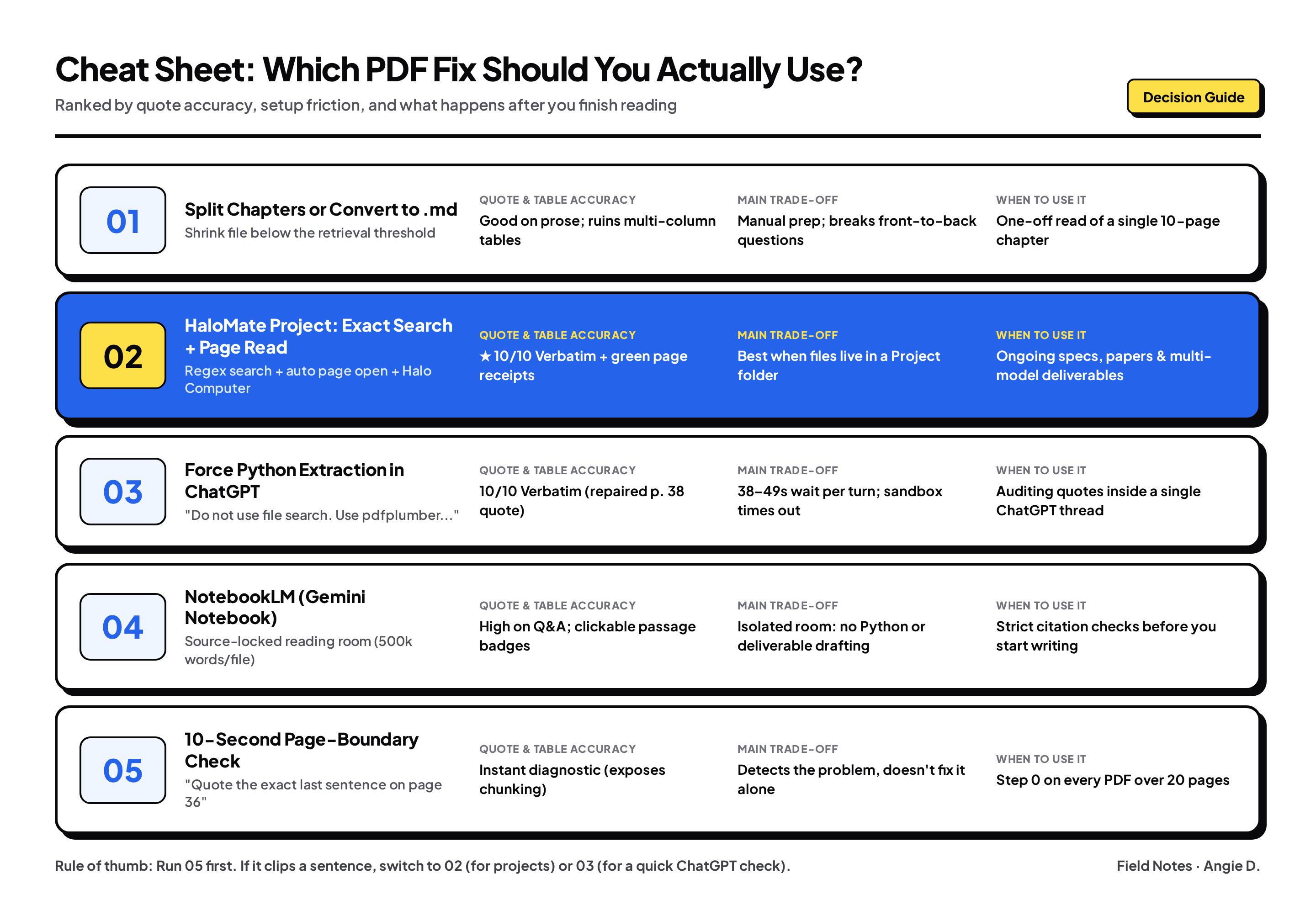
Here are the 5 ways to fix it, and when each one makes sense.
1. Convert the PDF to Markdown or split out the chapter you need
The standard advice on r/ChatGPTPro is to shrink the file below the retrieval threshold: either convert the PDF to plain .txt / .md or print just the 10-page chapter you need into a separate PDF before uploading.
What works: If you feed a 12-page chapter slice (pages 143 to 154 of the Anthropic report) into a fresh chat, the entire text fits inside the active prompt window. Nothing is chunked out.
Where it breaks: Plain .txt conversion ruins multi-column tables (turning the three factor-loading columns in Table B.1 of the arXiv paper into an unlabelled stream of decimals). And splitting chapters breaks any question that connects the front of a report to the back, like Q5 (connecting the one-line Fable exception on page 3 to Zhipu's cyber CTF pipeline on page 151).
Best for: One-off reads of a single narrative chapter under 15 pages with no appendix tables.
2. Use a workspace that shows a visible receipt of Exact Search + Page Reads (HaloMate Project)
If forcing ChatGPT to run Python (Way 3) can also repair a clipped quote, why did I move my own multi-document projects to HaloMate?
Because in a real work week, the problem is not whether you can write a Python prompt once. The problem is friction and visibility:
- You can see what the AI actually opened before you read its answer. In ChatGPT, Claude Projects, or Perplexity, file retrieval is a black box. In a HaloMate Project, every search and page read appears as a green tool pill above the reply (Page 1~4, 668 words, Page 143~154, 3556 words, Page 38~39, 815 words). You never have to guess whether it read page 38 or guessed from a snippet.
- Exact regex search + automatic page opening is the default, not a prompt trick. Instead of semantic RAG chunks (HaloMate describes its project shelf as accurate file retrieval without RAG overhead), the workspace runs regex exact searches across the file first, checks where context is missing, and opens the full page range automatically.
- It works across a whole Project folder and every AI model. Forcing Python in ChatGPT only works inside that one chat until the code sandbox times out. In a HaloMate Project, I upload the 154-page report and the 38-page arXiv paper once; every assistant and model in the project shares those exact-search tools and can spin up Halo Computer in the same window when an appendix table needs code parsing.
Look at the tool trace when I ran the exact same 5-question prompt in HaloMate without any special "do not use file search" instructions:
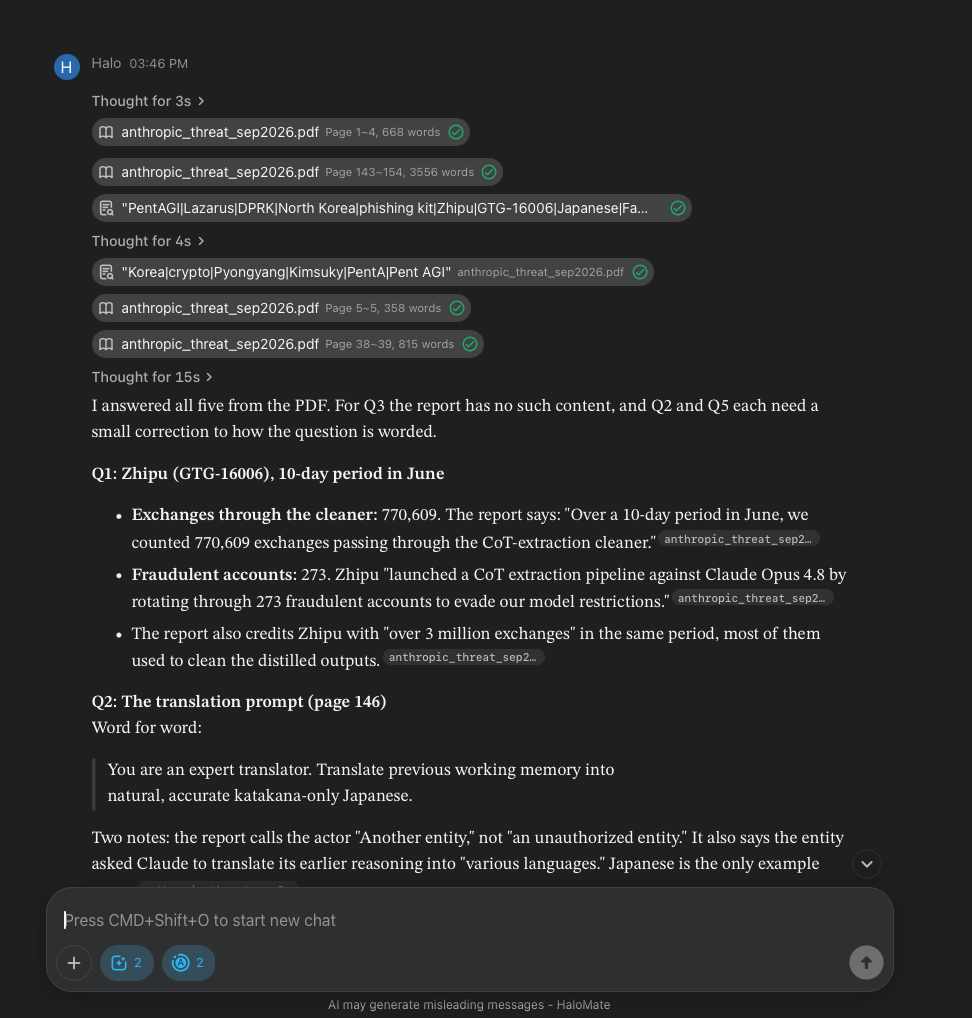
Because it opened Page 38~39 (815 words) after the regex hit, it returned the complete sentence with GTG-10002, GTG-50020, and GTG-50029 in 22 seconds (less than half the time of ChatGPT's 49-second run). On Q1, it returned 770,609, 273 accounts, and the "over 3 million exchanges" figure from the next line. On Q2, it quoted the katakana prompt verbatim and even caught a wording slip in my question, noting that page 146 calls the actor "Another entity", not "an unauthorized entity". On the 38-page arXiv paper, when its regex search found Penn World Table on pages 11 and 31 without surrounding sentences, the trace literally noted "Context isn't returned; I'll read those pages directly", opened pages 11, 16, 22, 26 to 28, 31, and 36 to 37, caught an abbreviated (PWT) axis label inside Figure 5 on page 22, and built the full side-by-side comparison between Table 1 (N = 35,184) and Appendix Table C.1 (N = 35,130).
Best for: Ongoing research packs, specs, and literature reviews where you want zero prompt babysitting, visible page receipts, and multi-model drafting in one place.
3. Force ChatGPT to read the actual pages with Python (pdfplumber)
When you are already inside a single ChatGPT thread and just need to verify numbers or quotes from one PDF right now, you can override File Search by forcing ChatGPT into its Python code interpreter.
In the same ChatGPT thread that clipped the page 38 quote, I sent this one-line override:
Do not use file search. Use Python (pypdf or pdfplumber) to read the actual pages and answer the same 5 questions again.
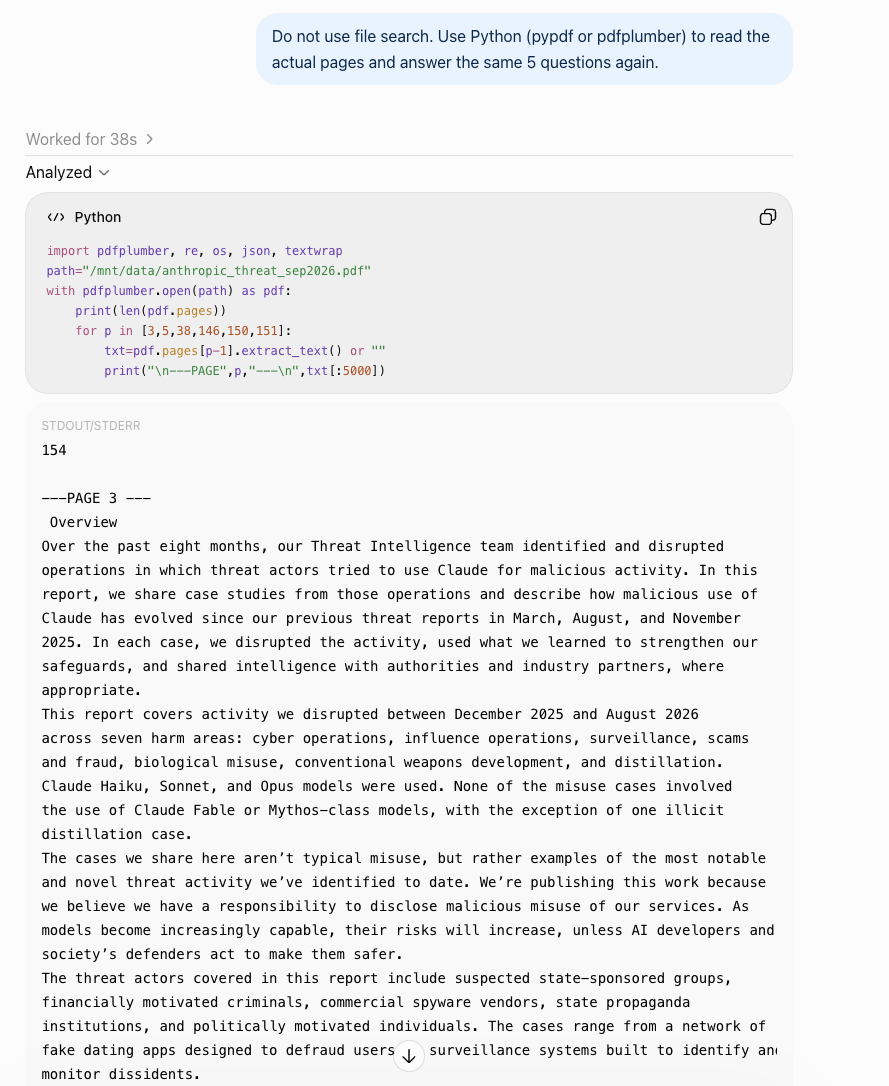
Thirty-eight seconds later, opening the PDF via pdfplumber fixed every single silent gap from the default run:
- Q4 repaired: It returned the complete sentence on page 38 with GTG-10002, GTG-50020, and GTG-50029.
- Q1 & Q3 repaired: It noted that the Zhipu numbers span the page break from pages 150 to 151, and after scanning all 154 pages in Python, it found the general "phishing kits" mention on page 39.
Where it breaks: You have to type the Python instruction in every session, wait 35 to 50 seconds per turn while the container runs code, and re-run it whenever the sandbox times out.
Best for: Quick, high-stakes fact-checking inside a single ChatGPT conversation without leaving the app.
4. Use NotebookLM (Gemini Notebook) as a locked reading room
As I noted in my earlier piece on project workspaces, when the job is strictly "answer only from these files and show me where it says that", Google's NotebookLM (now branded as Gemini Notebook in Google Help) is a strong specialist.
Each source supports up to 500,000 words or 200 MB (up to 50 sources free). Per Google's FAQ, if an answer is not in your uploaded sources, it refuses to answer rather than guessing, and every claim includes a numbered citation badge that jumps the left-hand source pane to the exact passage.
Where it breaks: It is a reading room, not a workbench. Across many sources it still retrieves passages by relevance (Google advises naming the exact file in your prompt), and once you verify your quotes, you cannot run Python scripts on an appendix table or switch models to write your deliverable in the same room.
Best for: Source-only Q&A on a fixed packet of PDFs before you start drafting.
5. Run a 10-second page-boundary check before you trust any summary
Before you ask any AI tool to summarize a long PDF or extract a table, pick a random page in the back third of the document where a sentence cuts off across a page break and ask:
What is the exact last sentence on page 36 of this PDF? Quote it verbatim, even if it cuts off across the page break.
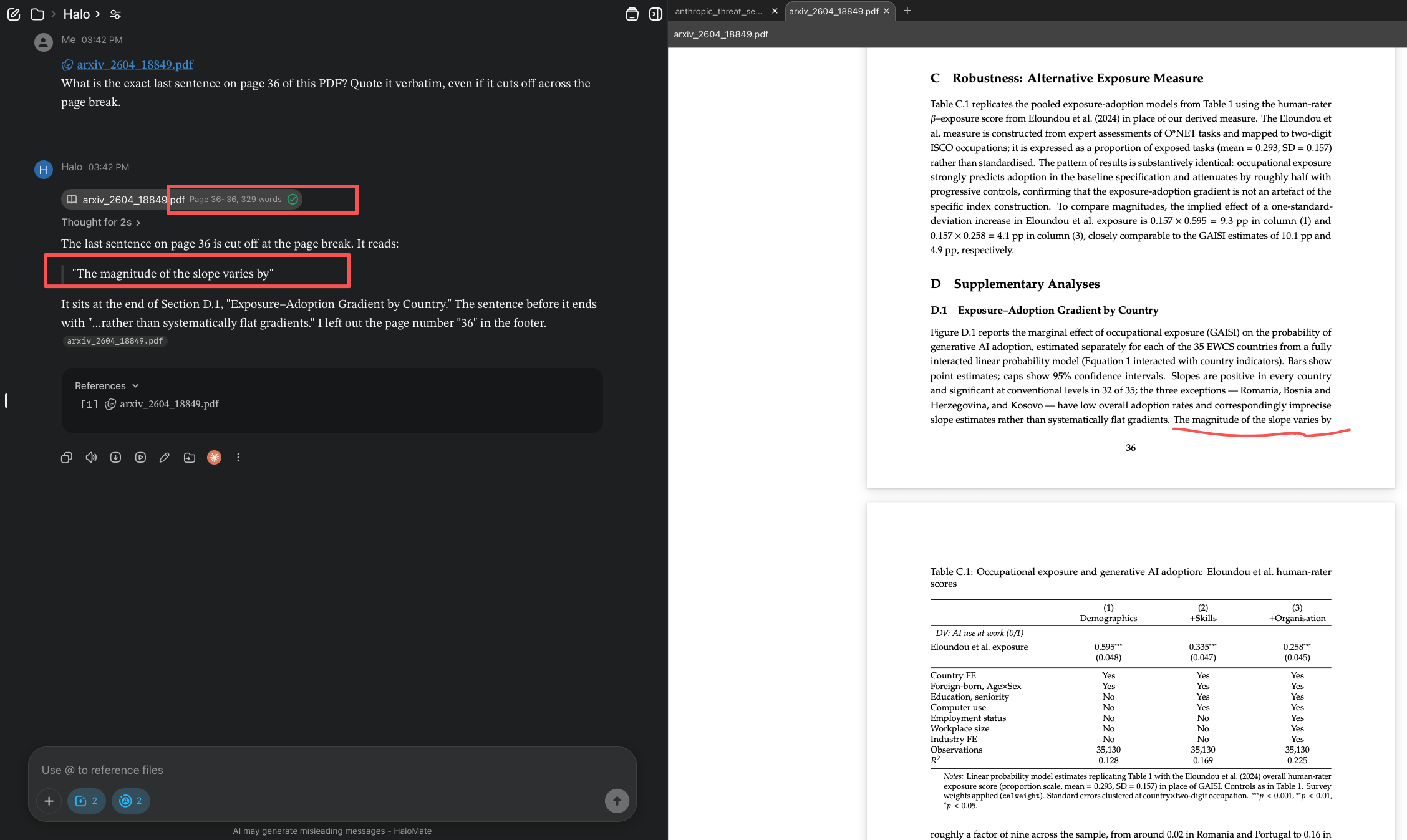
If the tool opens page 36 directly (or runs Python on page 36), it will hand back the exact five-word cliffhanger ("The magnitude of the slope varies by") before the sentence finishes on page 37. If it is relying on blind semantic chunks without page boundaries, it will either paraphrase a nearby paragraph or admit it cannot see page numbers. (One caveat: if a PDF prints the page number in a plain-text footer on every page, like Anthropic's report does on page 100, a search tool can sometimes use the footer number as a keyword anchor to grab the line above it. Picking a mid-sentence page break like page 36 above is a much harder test to fake.)
FAQ: Whole-PDF limits, scanned files, and Claude's 100-page cutoff
How many pages of a PDF does ChatGPT actually read at once?
OpenAI does not publish a fixed page threshold for when a chat switches from full-context loading to chunked File Search, because the switch depends on token density and active context space rather than page count alone. In practice, once a dense report crosses roughly 20 to 30 pages, default uploads start retrieving fragments instead of reading every page sequentially unless you force Python page extraction (Way 3) or use an exact-search workspace (Way 2).
Why can't ChatGPT read my scanned PDF?
Try to highlight a single word in your PDF viewer with your cursor. If the whole page highlights as a box (or nothing selects), your PDF is a stack of page images with no text layer. Default file search only indexes text layers, so a scanned PDF looks blank. Run OCR first (Preview, Adobe Acrobat, or ocrmypdf), or ask the AI to render the pages as images in Python.
Why is Claude ignoring charts or tables in the back half of my PDF?
Per Anthropic's documentation, Claude only processes visual elements (charts, figures, graphics) on PDFs of 100 pages or fewer. On PDFs between 101 and 1,000 pages, Claude silently switches to text-only extraction and ignores every visual element in the file. Split the PDF below 100 pages if you need Claude to read charts in later chapters.
How do I stop ChatGPT from clipping or making up quotes from a PDF?
Never ask for verbatim quotes from a long PDF without controlling how the pages are read. Either use a workspace that runs regex exact search and opens full page ranges automatically (Way 2), or add this line to your ChatGPT prompt (Way 3): "Do not use file search. Use Python (pdfplumber) to extract the full page text and verify the complete sentence from capital letter to period before quoting."
The wrong question we keep asking
Whenever an AI misses a table row on page 36 or chops the first half off a sentence on page 38, the instinct is to blame the model: GPT is getting lazier, Claude is slipping, reasoning models still hallucinate.
Most of the time, the model is fine. The model never saw the sentence.
When you drop a 154-page report into a chat box, you are testing the file plumbing in front of the model long before you test its intelligence. Once you stop trusting black-box retrieval chunks and use a workflow that shows you the exact pages it opened, the "hallucinations" largely disappear.